
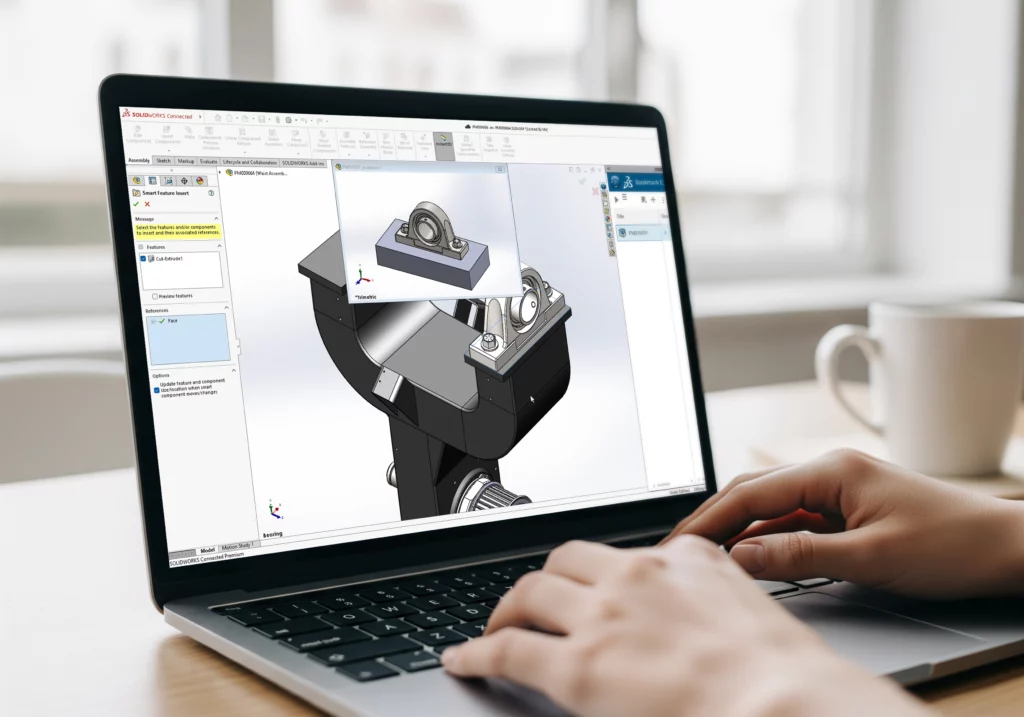
Your team just invested in SOLIDWORKS. But within weeks, rebuilds crawl, features you need sit behind a higher-tier licence, and your workstation fans sound like a jet engine. Sound familiar? For many South African engineering teams, the problem isn’t the software itself. It’s the setup around it.
Choosing the right SOLIDWORKS configuration in South Africa comes down to three decisions: the right package, the right licence, and the right hardware. Get any one of these wrong, and you’ll spend more time troubleshooting than designing. The global CAD/CAE/CAM market is projected to reach an estimated R405 billion, growing at 12% annually through 2033. That growth reflects how critical these tools have become. But it also means the choices are more complex than ever.
This guide breaks down each decision step by step, so you can build a CAD environment that works for your team, your workflow, and your budget.
What Does a Complete SOLIDWORKS CAD Setup Include?
A complete SOLIDWORKS CAD setup has three parts: the right software package for your workflow, a licence model that matches your budget and team size, and a workstation built to handle the demands of 3D design. Each one affects the others, so it pays to plan them together rather than in isolation.
Think of it like building a house. Your software package is the floor plan. Your licence is how you pay for it. And your hardware is the foundation it all sits on. A beautiful floor plan on a weak foundation will crack. A strong foundation with the wrong floor plan wastes space.
Most businesses focus on the software decision first. That’s a good starting point. But skipping the hardware conversation, or defaulting to whatever licence seems cheapest upfront, often leads to hidden costs down the line. Cadmes helps South African businesses work through all three decisions together, so the entire setup supports the way your team actually designs.
Which SOLIDWORKS Package Do You Need: Standard, Professional, or Premium?
SOLIDWORKS comes in three tiers. Standard covers core 3D modelling, assemblies, and drawings. Professional adds file management (PDM Standard), rendering, and cost estimation tools. Premium builds on Professional with advanced simulation, routing for pipes and wiring, and reverse engineering capabilities.
Each tier includes everything in the one below it. So Premium includes all Professional features, and Professional includes all Standard features. The question isn’t which tier has the most tools. It’s which tools your team will actually use.
Dassault Systèmes describes Standard as the entry-level package with essential tools for parametric modelling, sheet metal design, and weldments. For a small team doing straightforward part design and assemblies, Standard often covers everything you need.
Professional becomes worth considering when your team needs better file control. PDM Standard, which is included with Professional, helps manage revisions, approvals, and shared files. If your team has ever lost track of which version of a part is current, that’s a sign you’ve outgrown Standard. Professional also adds cost estimation and PhotoView 360 for photorealistic rendering.
Premium is built for teams that need to validate designs before manufacturing. It includes tools for structural simulation, motion analysis, and routing (for pipes, tubes, and electrical cables). If your engineers currently rely on physical prototypes to test product behaviour, Premium can reduce that need significantly. You can explore the full range of Cadmes’ SOLIDWORKS software solutions to see how each package fits different workflows.
The most common mistake? Buying Premium “just in case” when Standard or Professional would do the job. The second most common? Starting on Standard and realising six months later that your team needs SOLIDWORKS PDM capabilities they can’t access without upgrading.
Licensing That Fits Your Budget
SOLIDWORKS offers two main licence models: perpetual and term. Each serves a different business need, and the right choice depends on how your team works and how you prefer to budget for software.
A perpetual licence is a one-time purchase. You own the software indefinitely. To keep receiving updates, technical support, and access to new versions, you add an annual subscription service. Dassault Systèmes notes that perpetual licensing with subscription offers the lowest total cost of ownership over the long term. It’s well suited to businesses with ongoing product lines and a long-term view of their CAD investment.
A term licence works more like a subscription. You pay for access over a set period (typically 3 months or 12 months). The upfront cost is lower, which makes term licensing attractive for start-ups, project-based teams, or businesses that need extra seats for a limited time.
Both licence types are available as standalone (locked to one machine) or network (shared across multiple machines on a network). Network licences give teams more flexibility. If you have five engineers but only three work in SOLIDWORKS at the same time, a network licence lets you share seats without buying one per person.
It’s also worth noting that all new SOLIDWORKS licences now include Cloud Services, connecting your desktop software to the 3DEXPERIENCE platform. This gives you access to cloud-based file sharing, markup tools, and version control, regardless of which licence type you choose.
When comparing costs in ZAR, remember that the cheapest option upfront isn’t always the most affordable over three to five years. A perpetual licence costs more initially but typically works out cheaper over time. A term licence keeps your initial spend lower but adds up with renewals. Cadmes can help you map both options to your budget and team size so you can see the real numbers before committing.
What Hardware Do You Need to Run SOLIDWORKS Properly?
SOLIDWORKS needs a 64-bit Windows workstation with a certified graphics card, at least 16 GB of RAM (32 GB recommended), and an SSD for storage. The CPU should prioritise clock speed over core count for general modelling, since many SOLIDWORKS tasks run on a single thread.
Let’s break that down.
Processor (CPU): SOLIDWORKS relies heavily on single-thread performance for tasks like opening files, rebuilding models, and working with assemblies. A 4-core processor running at 3 GHz or higher will handle most workflows well. Simulation and rendering benefit from additional cores, but for everyday design work, clock speed matters more. Dassault Systèmes’ official system requirements confirm that a 64-bit Intel or AMD processor is required, and their hardware help documentation recommends prioritising speed.
Graphics card (GPU): This is where many teams make a costly mistake. Gaming GPUs might seem like a bargain, but SOLIDWORKS is tested and certified with workstation-class cards. Dassault Systèmes maintains a hardware certification page listing every qualified workstation and graphics card. Certified cards from the NVIDIA RTX PRO (formerly Quadro) and AMD Radeon PRO ranges are optimised for stable viewport performance. Features like RealView and Ambient Occlusion only work with certified cards. A non-certified GPU might technically run the software, but you risk graphical glitches, crashes, and no official support.
Memory (RAM): 16 GB is the minimum. If your team works with assemblies over 200 components or runs simulations, 32 GB is a safer starting point. Larger assemblies and multiphysics simulations can push requirements to 64 GB.
Storage: An NVMe SSD is strongly recommended. It affects how quickly you open files, save assemblies, and load projects. Dassault Systèmes recommends keeping at least 20% of your drive free for virtual memory and scratch space.
Operating system: Windows 10 or Windows 11 (64-bit). Note that Microsoft ended support for Windows 10 in October 2025, and SOLIDWORKS followed suit. If you’re still on Windows 10, it’s time to plan your upgrade.
For teams that need SOLIDWORKS Simulation options or heavy rendering, consider investing in a higher-spec workstation from the start. Upgrading hardware piecemeal is often more expensive and disruptive than specifying the right machine upfront.
Why Local Support Changes Everything
Buying SOLIDWORKS is one decision. Getting it set up correctly, keeping it running smoothly, and growing your team’s skills over time is another. That’s where the relationship with your reseller matters.
Cadmes is an authorised SOLIDWORKS reseller based in Centurion, with support across Gauteng and nationwide. But the value goes beyond selling licences. Cadmes provides engineering software services that cover PDM implementation, simulation consulting, API automation, CAD file auditing, and custom training.
When you hit a setup issue at 9 AM on a Tuesday, you need someone in your time zone who can help. When your team outgrows Standard and needs Professional, you need a partner who already understands your workflow and can guide the upgrade without disruption. When a new engineer joins and needs to get productive quickly, structured SOLIDWORKS training courses make the difference between weeks of fumbling and days of focused learning.
Local support also means your reseller understands the South African context: Rand-based budgeting, local infrastructure considerations, and the practical realities of running engineering teams in this market. That context shapes better recommendations than a generic global sales conversation ever could.
How Do You Future-Proof Your CAD Environment?
Future-proofing means choosing a setup that can grow with your business: a scalable licence model, expandable hardware, and a team that’s trained to use the software effectively as your needs evolve.
Start with your licence model. If your team is growing, a network licence gives you flexibility to add seats without replacing your entire licensing structure. Term licences can help you scale up for busy periods and scale down when projects wind down.
On the hardware side, buy a workstation that gives you room to expand. Choose a machine that supports additional RAM and has space for a second storage drive. A workstation that meets your needs today but can be upgraded to 64 GB of RAM next year is a smarter investment than one that maxes out at 16 GB.
Cloud connectivity is another piece of the puzzle. The 3DEXPERIENCE platform connects people, processes, and data in a cloud-based environment. It’s accessible from anywhere, on any device, and helps teams work from a single source of truth. For businesses with remote engineers or multiple offices, this can simplify collaboration and reduce the risk of working on outdated files.
Data management matters too. As your team grows, so does the volume of design files, revisions, and documentation. SOLIDWORKS PDM helps you manage that complexity before it becomes a bottleneck. The earlier you set up proper data management, the less painful it is to maintain as your file library grows.
And don’t overlook training. Software only delivers value when your team knows how to use it well. Cadmes offers SOLIDWORKS training courses for every level, from essentials through to advanced simulation and PDM administration. Investing in training early helps your team work faster, make fewer errors, and get more from every feature in their package.
Getting Started with the Right Setup
Choosing the right SOLIDWORKS CAD setup in South Africa comes down to three decisions: match your package to your actual workflow, choose a licence model that fits your budget trajectory, and invest in certified hardware that won’t hold your team back.
The best time to get these decisions right is before you buy. The second-best time is now.
If you’re evaluating SOLIDWORKS for the first time, upgrading from an older version, or rethinking your current setup, Cadmes can help. Our team works with South African engineering businesses every day to build CAD environments that deliver real results.
Get in touch with Cadmes to book a personalised SOLIDWORKS assessment. We’ll help you find the right package, licence, and hardware for the way your team works.