
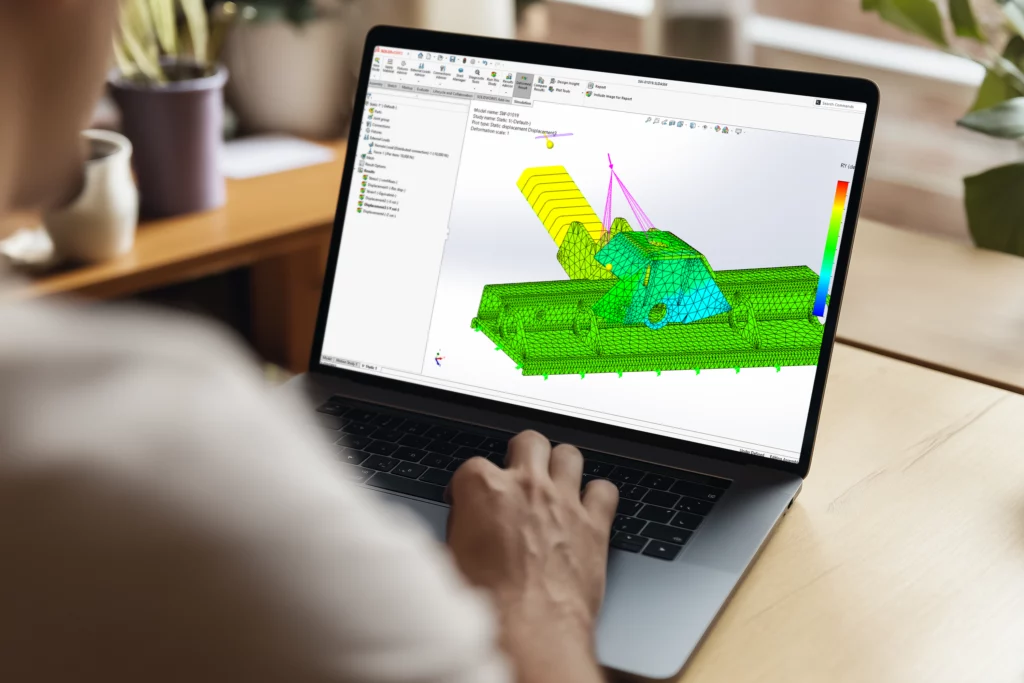
Every engineer reaches the same question sooner or later: “Will this design actually hold up?” Physical testing gives you an answer, but it arrives late in the process, costs money, and every failed prototype adds weeks to your timeline. That’s where SOLIDWORKS Simulation changes the equation.
Instead of building, testing, and rebuilding, you can validate your designs virtually inside the same SOLIDWORKS environment you already use for 3D modelling. SOLIDWORKS Simulation uses finite element analysis to predict how your parts and assemblies will behave under real-world loads, temperatures, and motion, long before anything reaches the workshop floor.
The global simulation software market was valued at roughly ZAR 212.5 billion (USD 13.1 billion) in 2023 and is growing at over 12% annually, driven largely by the shift to virtual prototyping. Engineering teams everywhere are moving away from expensive physical tests and towards simulation-first workflows. This post will help you understand what SOLIDWORKS Simulation actually does, which tier you need, and when it’s the right time to start using it.
What Is SOLIDWORKS Simulation?
SOLIDWORKS Simulation is an FEA (finite element analysis) tool that runs as an add-in inside SOLIDWORKS. It breaks your 3D model into thousands of small elements, applies real-world conditions like forces, heat, and motion, and then calculates how the design responds. You get results for stress, displacement, factor of safety, and more, all without leaving your CAD environment.
In simple terms, FEA takes a complex engineering problem and divides it into many smaller, solvable problems. The software then combines those results to give you a picture of how your entire design will perform. It’s the same method used across aerospace, automotive, and industrial engineering to validate products before manufacture.
What makes SOLIDWORKS Simulation different from standalone FEA tools is its direct integration with SOLIDWORKS Design. You don’t need to export your model, import it into a separate program, or rebuild geometry. Your simulation runs on the same model you designed. When you change a dimension or material in your CAD model, the simulation updates too.
It’s also worth noting the difference between SOLIDWORKS Simulation and SimulationXpress, the lighter tool that comes bundled with SOLIDWORKS Standard and Professional. SimulationXpress only handles single-body parts with basic linear static analysis. It’s useful for quick checks, but it won’t handle assemblies, fatigue, thermal effects, or any of the more advanced study types. SOLIDWORKS Simulation is the full-featured product with over 12 structural analysis types built in.
What Types of Analysis Can You Run in SOLIDWORKS Simulation?
SOLIDWORKS Simulation supports a wide range of study types, including static stress analysis, fatigue analysis, motion analysis, thermal analysis, frequency analysis, buckling analysis, drop testing, nonlinear analysis, and dynamic studies. The specific studies available depend on which tier you’re using (Standard, Professional, or Premium).
Here’s a closer look at the most commonly used study types and what they help you solve.
Static stress analysis is the starting point for most engineers. It calculates stress, strain, displacement, and factor of safety when your part or assembly is under a constant load. If you need to know whether a bracket will bend too much under a 5 000 N force, this is the study you’ll run.
Fatigue analysis predicts how long a design will last under repeated loading. It uses S-N curves (stress vs number of cycles) to estimate the number of load cycles before failure. This is critical for anything that sees cyclic stress: shafts, springs, mounting brackets, or structural joints.
Motion analysis lets you study how assemblies move. You can apply motors, springs, gravity, and contact forces to see how parts interact during operation. This is useful for mechanisms, linkages, and any design where moving parts work together.
Thermal analysis calculates temperature distribution through conduction, convection, and radiation. You can run steady-state studies (constant conditions) or transient studies (changing over time). Engineers use this for electronics cooling, engine housings, and heat exchangers.
Frequency analysis identifies the natural frequencies and mode shapes of your design. If a motor, pump, or other vibration source operates near one of those frequencies, you risk resonance, which can cause rapid fatigue or catastrophic failure.
Buckling analysis checks whether slender structures like columns, thin panels, or long beams might collapse under compressive loads, even if the stress is technically below the material’s yield point.
Drop test analysis simulates the impact when a product falls from a specified height. Consumer electronics, handheld devices, and packaged goods often need this kind of validation.
Nonlinear analysis handles situations where materials deform beyond their elastic limits (plastic deformation), where large deflections change the geometry significantly, or where contact between parts changes as load is applied. Rubber seals, snap fits, and crash-type scenarios fall into this category.
Dynamic analysis covers time-varying loads: random vibration, harmonic forces, impact events, and shock spectra. It’s essential for products exposed to unpredictable or oscillating loads during operation.
How SOLIDWORKS Simulation Fits Into Your Design Workflow
One of the biggest advantages of SOLIDWORKS Simulation is that it doesn’t sit in a separate silo. It works inside the same environment where you design, so simulation becomes part of the design process rather than a separate step at the end.
In a traditional workflow, engineers would design a product, send it to a simulation specialist (often using different software), wait for results, make changes, and then repeat. That back-and-forth adds days or weeks. With SOLIDWORKS Simulation, the person doing the design can also run the analysis, right there in the same file.
This matters because simulation is most valuable when it’s used early and often. A quick static study at the concept stage can tell you whether your approach is sound before you invest hours in detailed modelling. Dassault Systemes highlights this closed-loop approach, where design changes and performance testing happen in the same environment, reducing reliance on physical prototypes and saving on material costs, labour, and time.
The integration also keeps your model and your simulation in sync. There’s no risk of testing an outdated version of your geometry because you forgot to re-export after a change. When you update a fillet radius or swap a material, your simulation reflects it immediately.
For teams that want to build their skills, Cadmes offers SOLIDWORKS Simulation training that covers study setup, load and constraint definition, result interpretation, and best practices for integrating simulation into everyday design work.
What Are the Three Simulation Tiers and Which Do You Need?
SOLIDWORKS Simulation comes in three tiers: Standard for basic structural validation and fatigue, Professional for thermal, frequency, buckling, and optimisation studies, and Premium for nonlinear and dynamic analysis of complex material behaviour. Each tier builds on the one below it, so Professional includes everything in Standard, and Premium includes everything in Professional.
Here’s how to think about each tier in practical terms.
SOLIDWORKS Simulation Standard is the entry point for dedicated FEA. It includes linear static analysis, fatigue studies (constant and variable amplitude), trend tracking to monitor how results change across design iterations, and event-based motion analysis. If your main need is confirming that a welded frame can handle a specific load and estimating how many load cycles it will survive, Standard covers you well.
SOLIDWORKS Simulation Professional adds thermal analysis (steady-state and transient), frequency and buckling studies, drop testing, pressure vessel analysis, and topology optimisation. Choose Professional if your products involve vibration, heat, impact, or if you need to optimise a part’s shape for weight or stiffness automatically. A pump manufacturer checking for resonance at motor speed, or a consumer electronics company running drop tests, would land here.
SOLIDWORKS Simulation Premium is for engineers pushing materials past their elastic limits or working with specialised material models. It adds nonlinear static and dynamic analysis (plasticity, hyperelasticity, large deflections), linear dynamic studies (random vibration, harmonic, response spectrum), and composite material analysis. If your designs involve rubber gaskets, snap-fit assemblies under large deformation, or components exposed to complex dynamic loading, Premium is the tier you need.
It’s also worth knowing that SOLIDWORKS Premium already includes some simulation capability: linear static stress analysis and time-based motion analysis for parts and assemblies. If you’re on SOLIDWORKS Premium, you already have basic analysis tools. SOLIDWORKS Simulation Standard then adds fatigue and trend tracking on top of that. Check what your current licence includes before purchasing a separate Simulation add-on.
When Should You Actually Use SOLIDWORKS Simulation?
Use SOLIDWORKS Simulation whenever you need to validate structural integrity, check fatigue life, test thermal performance, avoid resonance, verify impact resistance, or optimise material usage, before committing to a physical prototype.
Here are some specific scenarios that call for simulation.
Validating a structural design: You’ve designed a mounting bracket, a support frame, or an enclosure, and you need to confirm it won’t fail under the expected loads. A static study gives you stress, displacement, and factor of safety results in minutes.
Predicting product lifespan: Your part will experience thousands or millions of load cycles in service. Fatigue analysis tells you whether the design will last, or whether you need to add material, change geometry, or select a different alloy.
Checking for resonance: A motor, compressor, or pump creates vibration at a known frequency. Frequency analysis tells you whether your design’s natural frequencies are dangerously close to that operating frequency, and helps you adjust before the product fails in the field.
Testing under temperature changes: Your design operates in a hot environment, or it generates heat during use. Thermal analysis shows you where hotspots develop and whether thermal expansion will cause interference or stress concentrations.
Reducing prototyping costs: Building and testing physical prototypes is expensive, especially for larger assemblies or specialised materials. Running multiple design variations through simulation first lets you narrow down to the best option before committing to manufacture. According to industry research, the aerospace and defence sectors have seen roughly a 10% reduction in time-to-market through simulation tool adoption.
Optimising weight and material: Topology optimisation (available in Professional and above) can automatically suggest the most efficient material distribution for a given set of loads and constraints. This is especially useful for parts where weight savings matter, like aerospace brackets, drone frames, or portable equipment.
There are also cases where SOLIDWORKS Simulation is not the right tool. If you need to analyse fluid flow, heat transfer from moving air or liquids, or aerodynamic performance, you’ll want SOLIDWORKS Flow Simulation instead, which uses computational fluid dynamics (CFD). If you’re designing injection-moulded plastic parts and need to predict fill patterns, weld lines, or sink marks, SOLIDWORKS Plastics is purpose-built for that. Knowing which tool handles which type of analysis helps you get accurate results without forcing a tool into the wrong job.
Industries Where SOLIDWORKS Simulation Makes the Biggest Impact
SOLIDWORKS Simulation isn’t limited to a single industry. Any team that designs physical products and needs to validate performance before manufacture can benefit. That said, certain sectors use it more heavily than others.
Industrial equipment and machinery manufacturers use simulation to validate frames, housings, gearboxes, and structural weldments. Static and fatigue studies are the most common starting points, especially for equipment that will see heavy, repeated use.
Consumer products companies use drop tests, thermal studies, and static analysis to ensure their designs survive everyday handling. From power tools to kitchen appliances, simulation helps catch weak points before products reach customers.
Aerospace and defence has historically been the driving force behind FEA development. Engineers in this sector use nearly every study type: static, dynamic, frequency, thermal, buckling, and nonlinear. Automotive simulation tool adoption grew by 15% between 2023 and 2024, and aerospace continues to push the boundaries of what virtual testing can achieve.
Mining and heavy equipment is particularly relevant in the South African context. Designing for harsh operating conditions, heavy loads, and safety compliance means simulation isn’t optional; it’s essential. Structural validation and fatigue checks help prevent costly field failures on equipment that’s expensive to repair and dangerous to operate when compromised.
Medical devices require rigorous testing and documentation for regulatory compliance. Simulation provides a controlled, repeatable way to demonstrate that a device meets performance requirements under defined conditions.
Across all these sectors, the CAE market is expected to grow from roughly ZAR 199.2 billion (USD 12.28 billion) in 2025 to ZAR 323.8 billion (USD 19.96 billion) by 2030, driven by the need for simulation-driven design and reduced dependence on physical prototyping. The direction is clear: virtual testing is becoming standard practice, not an optional extra.
Getting Started with SOLIDWORKS Simulation
If there’s one takeaway from this guide, it’s that SOLIDWORKS Simulation is most powerful when you use it early and throughout your design process, not just as a final check before release. The tool is built into your SOLIDWORKS environment, so the barrier to entry is lower than you might expect.
Start by understanding what your current SOLIDWORKS licence already includes. If you’re on SOLIDWORKS Premium, you already have basic static and motion analysis. From there, decide whether your projects need fatigue, thermal, frequency, or nonlinear capabilities, and choose the Simulation tier that matches.
For teams getting started, structured training makes a real difference. Cadmes offers simulation courses that cover everything from study setup to interpreting results and applying them to design decisions. Building confidence in simulation early means your team will reach for it naturally rather than skipping it under time pressure.
Ready to explore what SOLIDWORKS Simulation can do for your engineering team? Browse the full SOLIDWORKS product range on the Cadmes website, or get in touch to discuss which tier fits your workflow and projects.
Disclaimer: All USD to ZAR conversions were calculated at an exchange rate of R16.22 at the time of publishing.